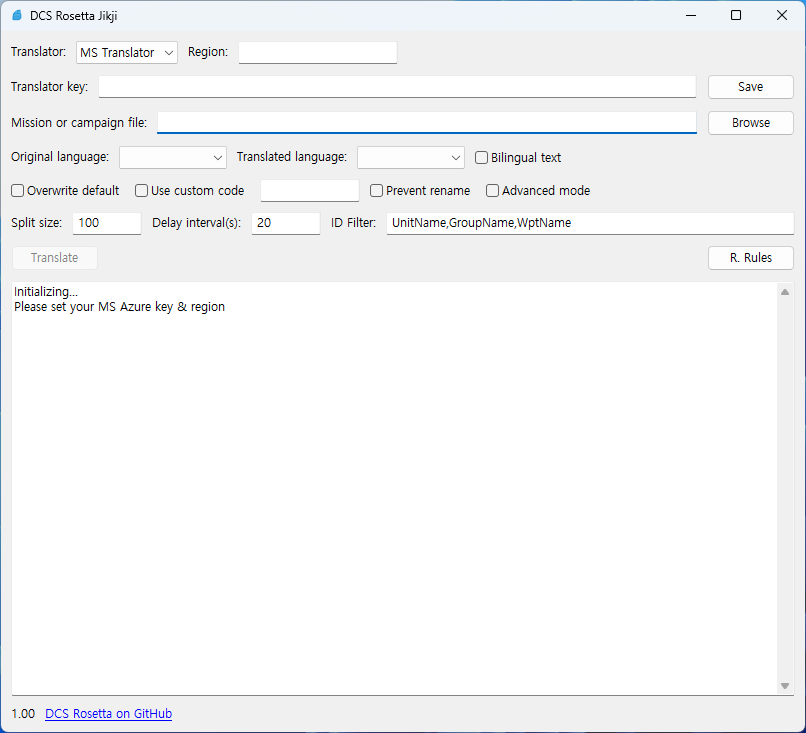
DCS Rosetta is a free application to automatically translate missions and campaigns for the DCS World flight simulator. The original version used Yandex engine, but it hasn’t worked for some time because Yandex no longer offers free API keys. So I converted to work with DeepL and MS Azure engine. And some new features are also available!
[SETUP]
To use the program, you need to issue and register an API key. You can also choose to register and use only one of the 2 engines.
DeepL
1. Go to the DeepL website. https://www.deepl.com
2. Log in, then click 'Sign up for free' under 'DeepL API Free' to subscribe to the free plan on this page. https://www.deepl.com/en/pro-api#api-pricing
3. You can generate an API key on this page. https://www.deepl.com/en/your-account/keys
4. Copy the API key by clicking the 'Copy API Key' button.
5. Paste the API key into the 'Translator Key' field of DCS Rosetta Program.
6. Press the Save button to save the key.
MS (Azure)
1. Go to Azure Portal. https://portal.azure.com
2. Log in, then click 'Start' under 'Start with an Azure free trial' to subscribe to the free plan.
3. In the top search bar, type 'Translator'.
4. Sel ect 'Translator' fr om the search results
5. Create the Translator Resource by clicking Create button
6. Once created, click your Translator resource.
7. Navigate to 'Resource Management/Keys and Endpoint' in the left menu.
8. Copy 'KEY 1' and 'Location/Region' using 'Copy to clipboard' button, then paste them into the 'Translator Key' and 'Region' fields of the program
9. In Azure, you should upgrade to the Pay-As-You-Go plan after the one-month evaluation
[BASIC USAGE]
1. Sel ect your language code in TO: language combobox.
2. Press 'Browse' button to sel ect mission(.miz) of campaign file(.cmp).
3. Check 'Overwrite default' option if you want overwrite default text resource of mission rather than adding resource for your language.
4. Check 'Bilingual text' option to show the original text alongside the translation in parentheses
5. Press 'Translate' button and tranlated mission will be generated.
[ADVANCED USAGE]
In advanced mode, you can save translated texts as excel file, correct the translations before generate translated mission.
1. Select your language code in TO: language combobox.
2. Press 'Browse' button to select mission(.miz) of campaign file(.cmp).
3. Check 'Advanced mode' option.
4. Check/Uncheck 'Overwrite default' option and 'Bilingual text' option as you desire.
5. Press 'Translate' button to proceed with the translation.
6. Press 'Review' button to save translated excel file.
7. Open excel file and correct the translations
8. Press 'Upload review' button and select adjusted excel file. (You can skip Step 5, 6 if you already have excel file which you saved before)
9. Press 'Make .miz/.cmp' button and tranlated mission will be generated.
** In advanced mode, missions in campaign will not be translated together. You should translated them separately.
[MORE OPTIONS]
- Prevent rename: If checked, translated file will be saved in sub folder rather than renaming the file name.
- Use custom code: If the language code fr om translation engine doesn't match with DCS's language code, you can use this option. (Generally, ignore it!)
- Split size: The number of texts included in a single translation request
- Delay interval: Interval between translation requests (In case of MS translation, too many requests in for a certain period time can occur an error. It will be automaticaly switched to recommended value for the engine when you change the translation engine. )
- ID Filters: Texts like Unit Name, Group Name doesn't need translation. If ID of text includes items in this list, it will be omited fr om the translation.
- R.Rules (Replacement Rules): According to these rules, text replacement will be applied after the automatic translation. You can add your rule in format of 'text before:text after'
[TROUBLESHOOTING]
- If a script error occurs at the start of the mission, you need to use advanced mode to restore the script in the Excel file to its original text.
Original version: https://www.digitalcombatsimulator.com/en/files/3303948/
Github: https://github.com/thrustfox/dcsrosetta-ext